
Multi-Image OCR Guide
How to extract text from multiple images on Mac
One image is easy. A whole folder is where the friction starts. PeekText helps you move through multiple screenshots, scans, and photos without turning the process into a mess.
Published April 12, 2026

The problem
One file is simple.
Ten files become overhead.
The problem with multiple images is not extraction itself. It is repetition. Screenshots, scans, exports, and photo captures pile up fast, and the manual work of opening, reading, and retyping across all of them adds friction immediately.
That is where a clean workflow matters more than a flashy promise. You do not need fake one-click batch magic. You need a fast way to move through the set without losing context or stopping to paste after every single image.
PeekText gives you that path. Capture the text you need, let the Capture Shelf hold the results, and keep moving.
Where it helps
Image sets that usually waste time
These are the real multi-image cases where the workflow matters because you are repeating the same kind of extraction over and over.
Screenshot collections
Bug reports, research captures, and saved references often pile up as multiple screenshots. PeekText helps you work through them quickly without manual transcription.
Scans and exported pages
Forms, archived pages, scanned documents, and image-based exports are easier to process when you extract only the sections that matter from each file.
Photos from your phone
Airdropped notes, whiteboards, receipts, and document photos often arrive in batches. PeekText makes it practical to recover text from each one without switching tools.
Mixed image folders
Some batches contain dense text, others only a few labels or numbers. PeekText works best when you handle each image with a tighter, cleaner selection.
The workflow
A cleaner way to work through a folder of images
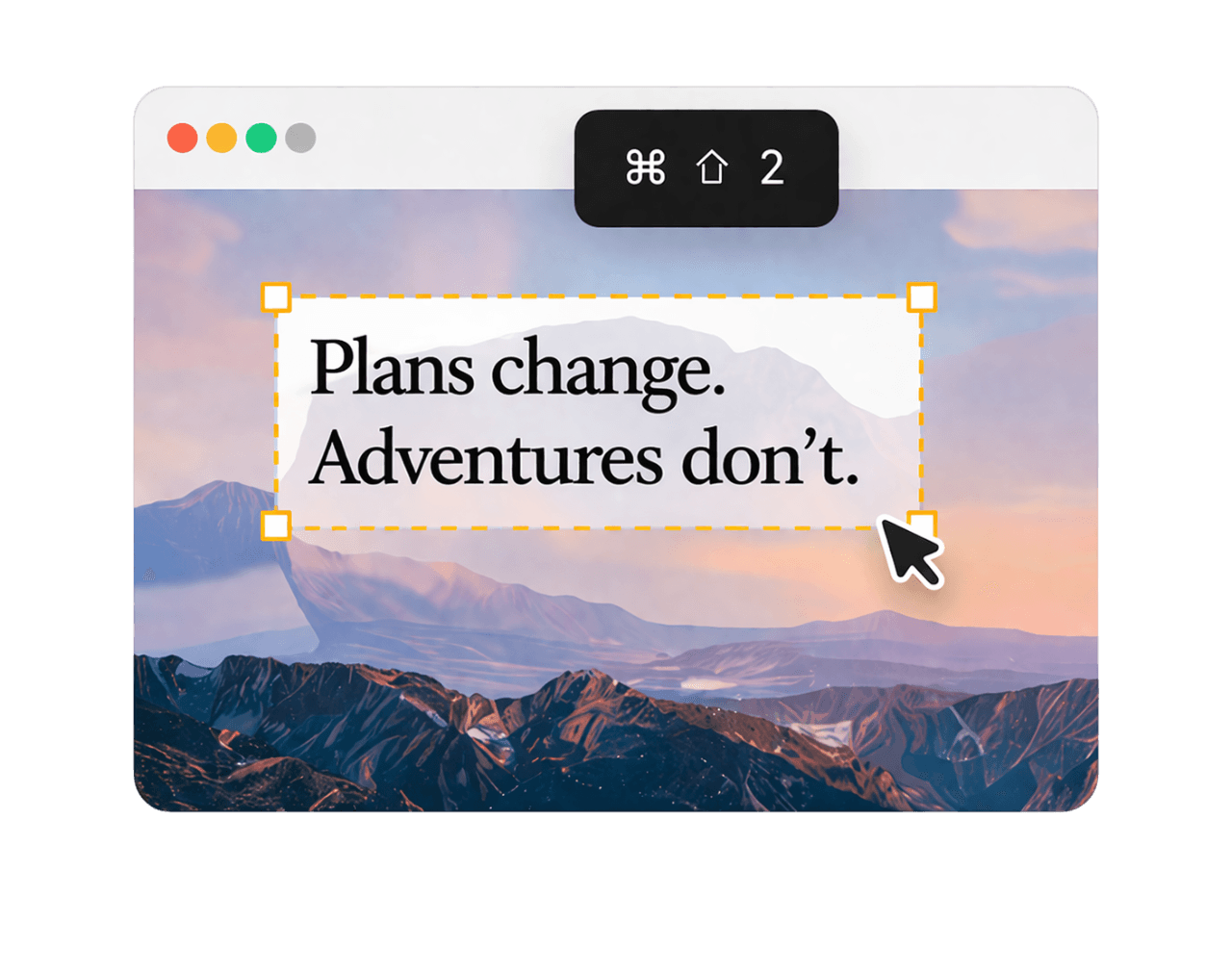
Open the image set you need to process
Finder, Preview, Quick Look, and other viewers all work. The source matters less than having each image visible on your screen.
Move image by image
Work through the folder in sequence and capture only the useful text from each file instead of trying to process everything blindly.
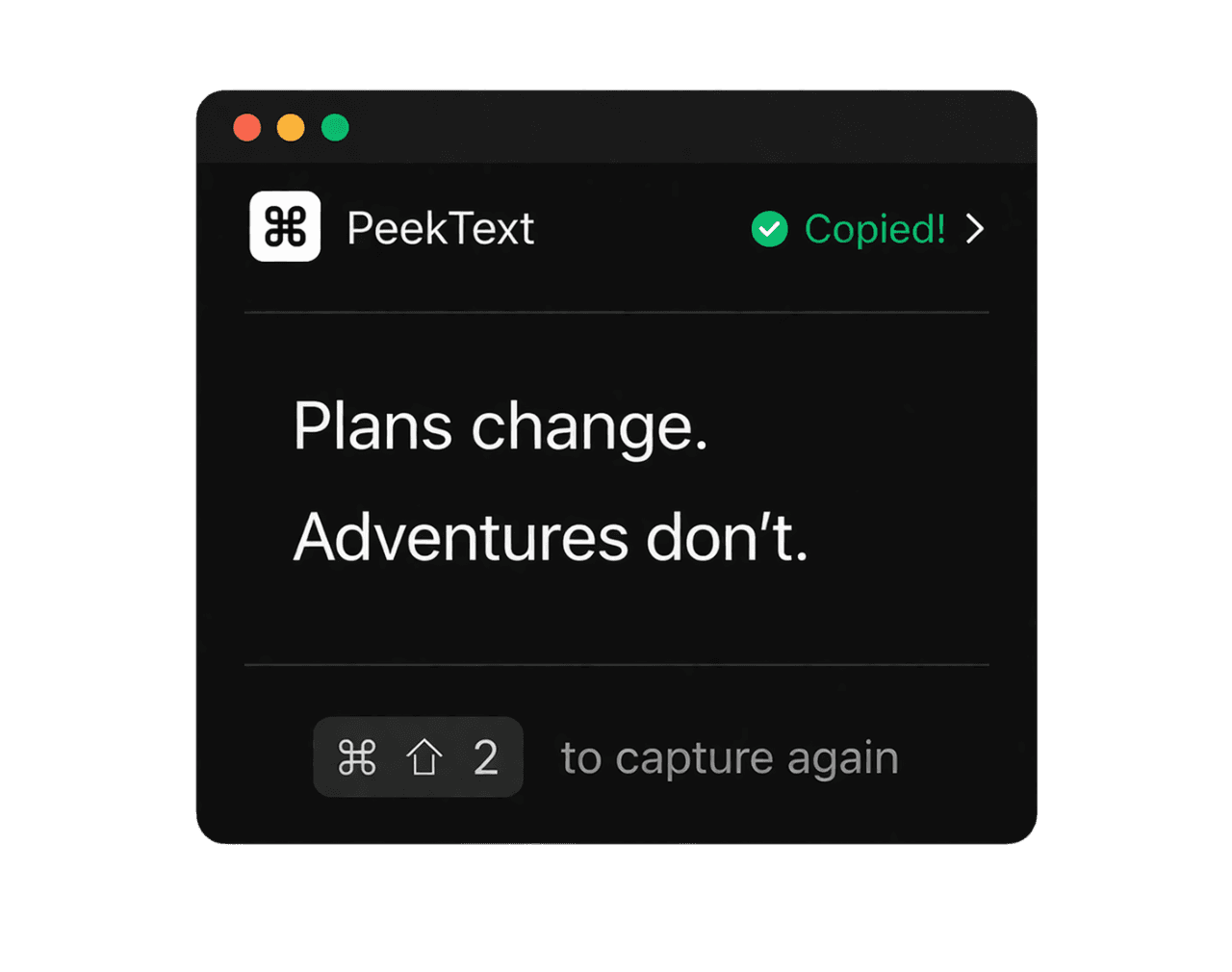
Let the Capture Shelf hold the results
You do not need to paste after every extraction. The Capture Shelf keeps recent text available while you keep moving through the batch.
Compile when you are done
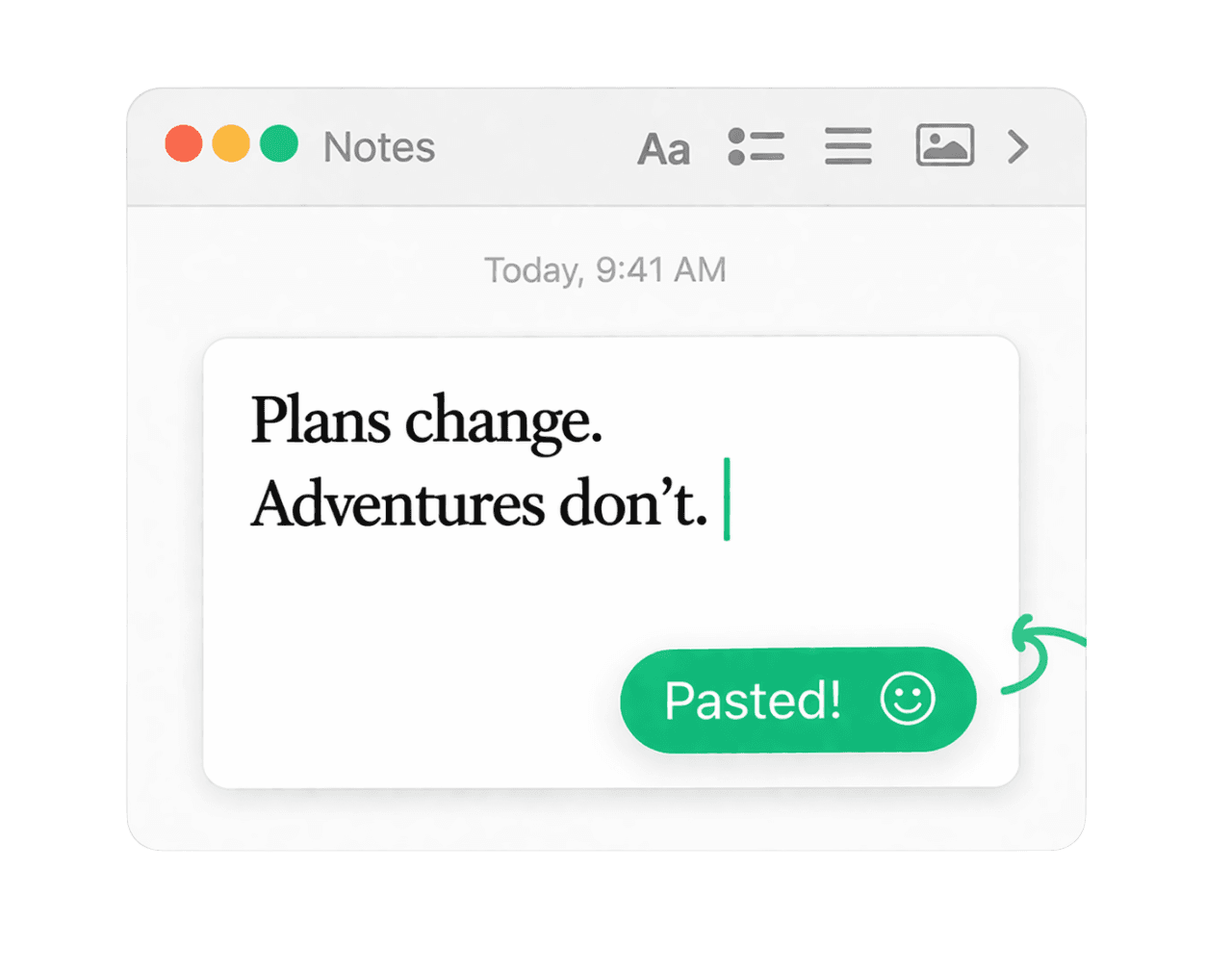
Once you finish the set, paste or organize the extracted text into your notes, document, spreadsheet, or workflow tool.
What matters most
The goal is speed with control, not blind automation
Mixed image folders are messy by nature. Some files contain dense paragraphs. Some only have short labels. Some are clean screenshots. Others are noisy scans or phone photos.
That is why rigid batch processing is often the wrong mental model. The better model is consistent, fast extraction with just enough control to adapt to each image.
PeekText fits that approach well because the capture is instant, local, and easy to repeat without breaking your rhythm.
Capture Shelf
Why the workflow works better when the results stay in one place
Why this workflow works
Faster than retyping
The value is not magic batch automation. It is removing repetitive manual copying from a folder full of images.
Better for mixed files
Different images need different selections. That is why a controlled image-by-image flow usually beats a blunt batch process.
Local and simple
Everything stays on your Mac, and the Capture Shelf helps you keep momentum while you move through the set.
Accuracy
Small habits that keep repeated extraction clean
Work in sequence instead of jumping randomly between files.
Use Quick Look or Preview at a readable zoom level before extracting.
Capture one section at a time for dense images instead of grabbing the whole frame.
Use the Capture Shelf to avoid pasting after every single image.
Check numbers, names, and short labels once before finalizing the batch.
Bottom line
Repeated OCR work should feel lighter, not slower
Processing multiple images is where bad workflows become obvious. A little manual friction repeated ten or twenty times stops being small.
The right approach is not pretending every folder needs full automation. It is building a flow that stays fast, local, and organized while you move through the batch.
That is what PeekText gives you. Open the image, select the text, store the result, and keep going.
Stop pausing and retyping
Extract any text from any video on your Mac.
PeekText works entirely offline. No uploads, no subscriptions, no account required. Install once and use it every day.