
How-To Guide
How to copy text from an image on Mac
Images make text visible, but not usable. PeekText turns that text back into something you can copy, paste, and work with instantly.
Published March 15, 2026

The issue
You can see the text.
You just cannot use it.
This happens constantly on a Mac. A screenshot contains an error message. A PDF shows non-selectable text. A scanned file holds information you need in a document, form, or email.
The friction is always the same. The text is there, but it is trapped inside pixels. Retyping is slow. Manual copying is impossible. Waiting on a cloud tool turns a simple task into a chore.
PeekText removes that gap. Select the text region, extract it locally, and paste it wherever you need it next.
How it works
Fast enough to feel built in
PeekText reads the text directly from what is visible on your display. That is why it works across screenshots, PDFs, scans, photos, videos, and more. If the text is on screen, it can be extracted.
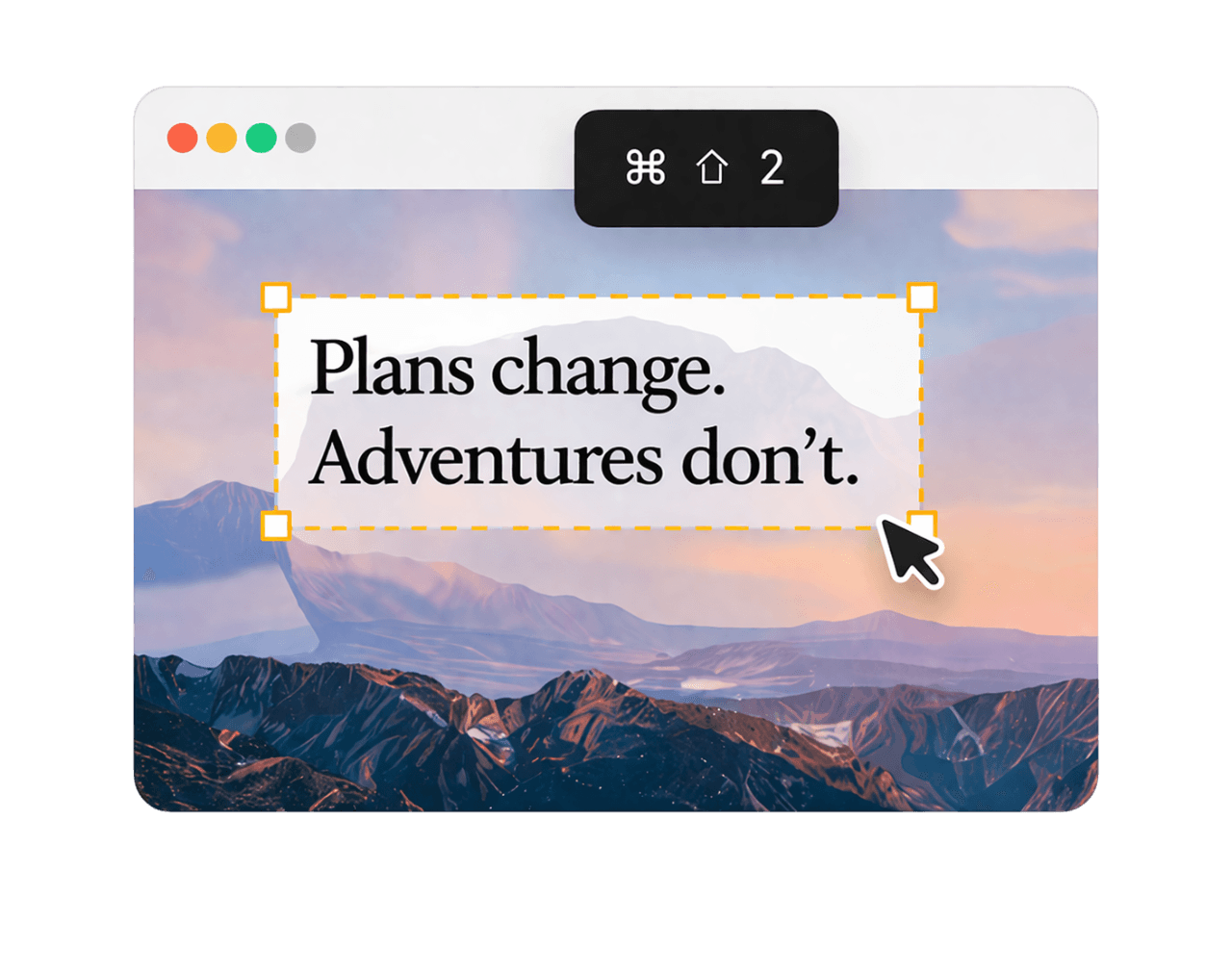
Trigger PeekText
Press Cmd + Shift + 2 to activate capture mode. Your cursor changes, ready for selection.
Select the text area
Click and drag around the exact region that contains the text you want to extract.
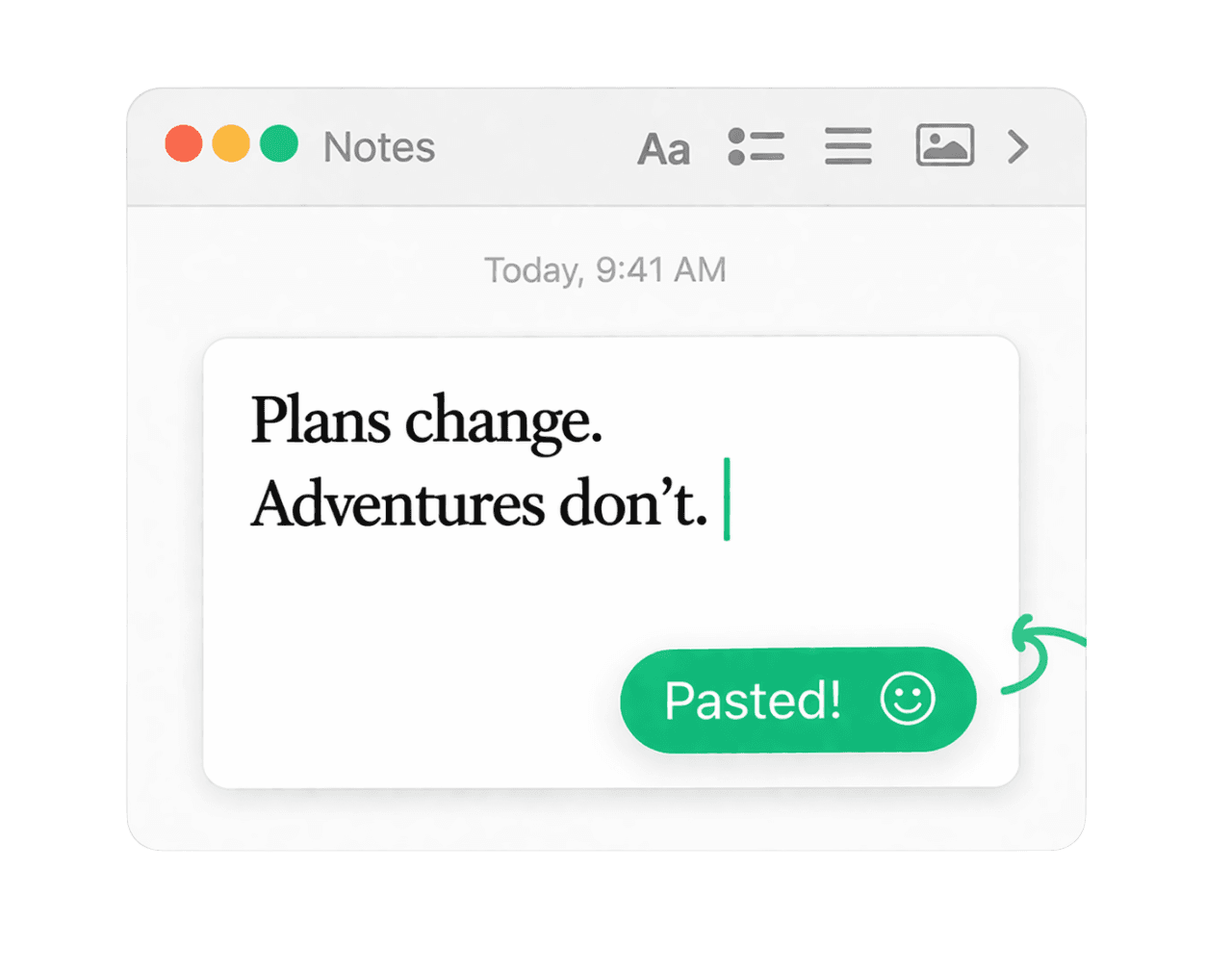
Paste and continue
The text is copied to your clipboard immediately, ready to paste into any app.
Where it helps
Text sources that stop being a problem
PeekText is useful anywhere text becomes visible without staying selectable. These are some of the most common cases.
Screenshots
Capture text from saved screenshots, browser captures, and screen grabs without opening a separate OCR service.
PDFs
Extract text from scanned or non-selectable PDFs shown on your screen in Preview or any other viewer.
Photos and scans
Recover text from photographed documents, receipts, forms, and reference images displayed on your Mac.
Videos
Pause on any frame and pull text from subtitles, slides, labels, or interface elements instantly.

Accuracy
A few habits make the result even better
Zoom in first when the text is small or dense.
Select tightly around the text instead of capturing unnecessary background.
Use high-contrast source images whenever possible.
Review technical strings like codes, URLs, or serial numbers before using them.
Why it matters
Small friction adds up fast
Copying text from images sounds minor until it becomes part of daily work. Reference numbers, snippets, notes, scanned paragraphs, slide text, and document details all get stuck in places where normal copy and paste does not work.
PeekText solves that in the shortest possible path. No upload. No account. No waiting. Just select, extract, and continue.
If you can see the text on your Mac, you should be able to use it. That is the whole point.
Stop pausing and retyping
Extract any text from any video on your Mac.
PeekText works entirely offline. No uploads, no subscriptions, no account required. Install once and use it every day.