
Website Image OCR Guide
How to extract text from website images on Mac
A lot of web content looks like text but behaves like an image. PeekText lets you copy text from infographics, social posts, embedded screenshots, and image blocks directly on your Mac.
Published April 12, 2026
The problem
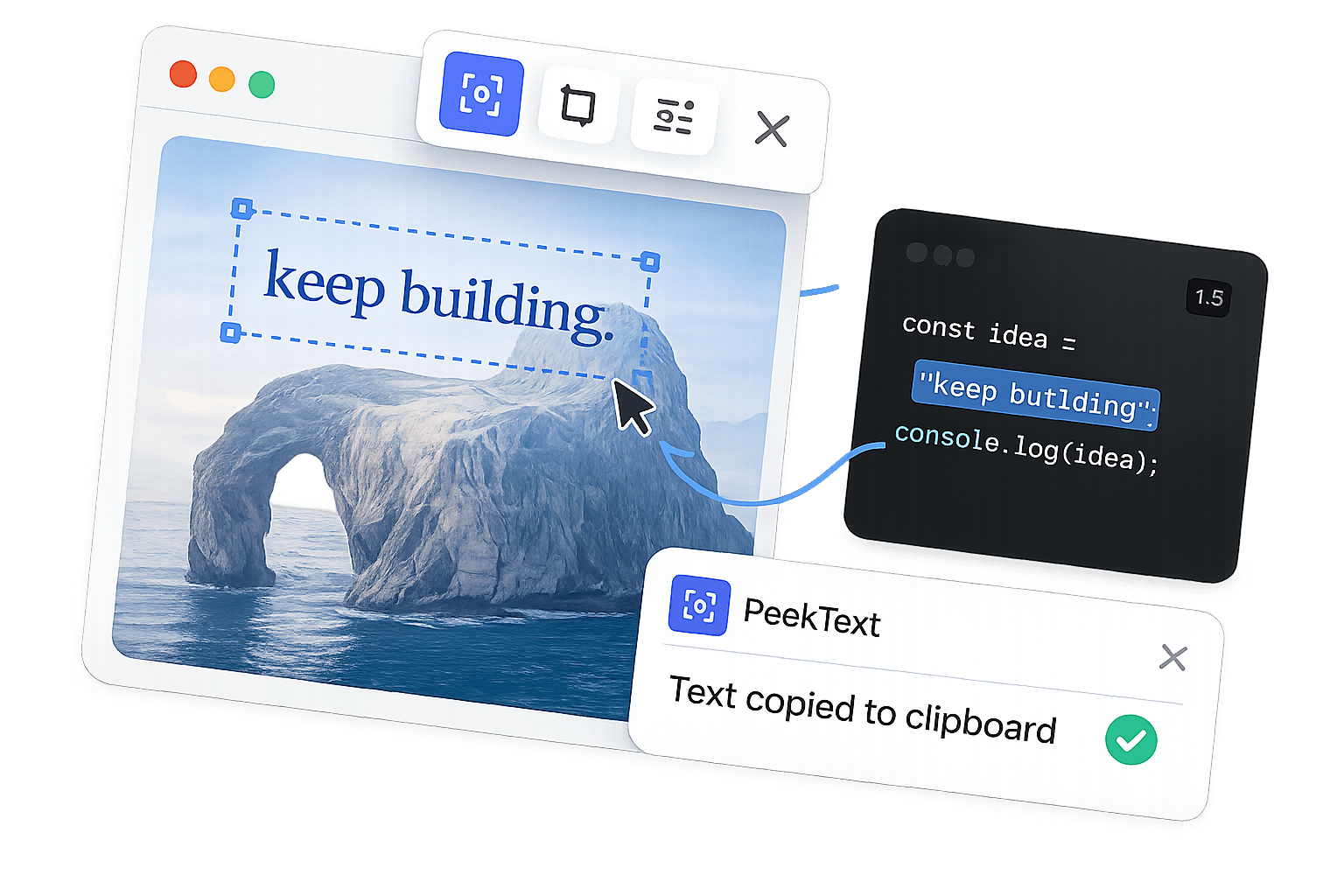
The text is right there on the page.
You just cannot copy it.
Browsers are excellent at rendering text when it exists as actual webpage content. They are useless when that text has been baked into an image.
This happens constantly across the web. Infographics, quote cards, social posts, screenshots, charts, and product graphics all display text that looks accessible but cannot be selected.
PeekText fixes that by reading the visible text directly from your screen and placing it on your clipboard instantly.
Common situations
Website images that usually slow you down
These are the moments where website image OCR stops being a nice extra and becomes the fastest way to get useful text out of the page.
Infographics with numbers you need
Charts, reports, and visual summaries often place the most useful numbers inside a single image. PeekText lets you pull those figures out without manually retyping them.
Social posts shared as images
Quote cards, reposted threads, screenshots, and carousel slides make the text visible but impossible to select. PeekText turns that text back into something you can use.
Embedded product graphics
Websites often place specs, feature lists, or pricing details inside images instead of HTML. PeekText helps you recover the text directly from the page.
Reference images in articles
Some blog posts and documentation pages bury useful labels, notes, or diagrams inside images. PeekText extracts only the part you need.
The workflow
The fastest way to recover text from web images
Open the page normally
Safari, Chrome, Arc, Firefox, or any browser works because PeekText reads the visible screen, not the website source code.
Find the image with the text you need
This can be an infographic, social post, embedded screenshot, or any other image-based content on the page.
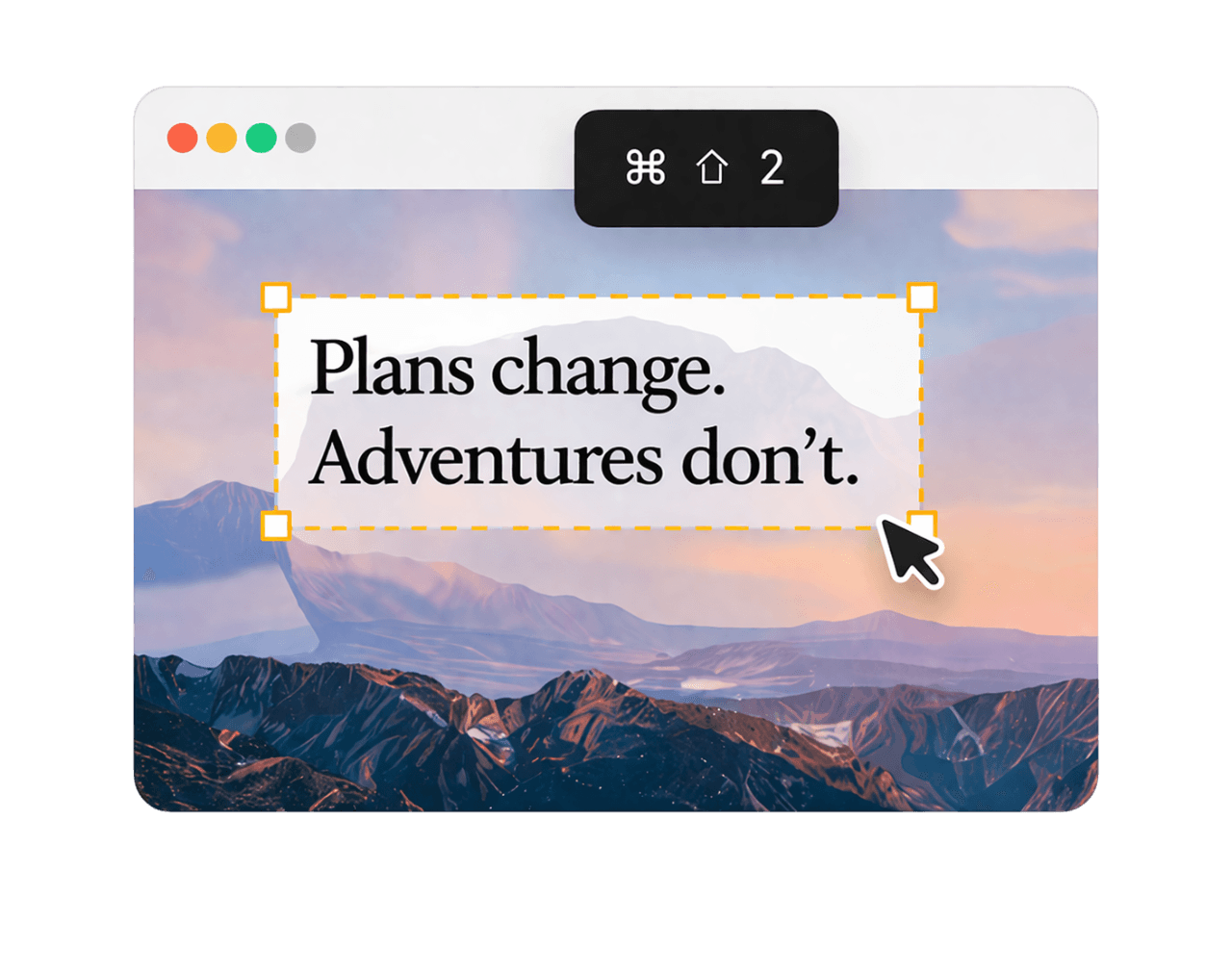
Press Cmd + Shift + 2
PeekText enters capture mode instantly so you can drag over the exact text region you want to extract.
Paste and continue
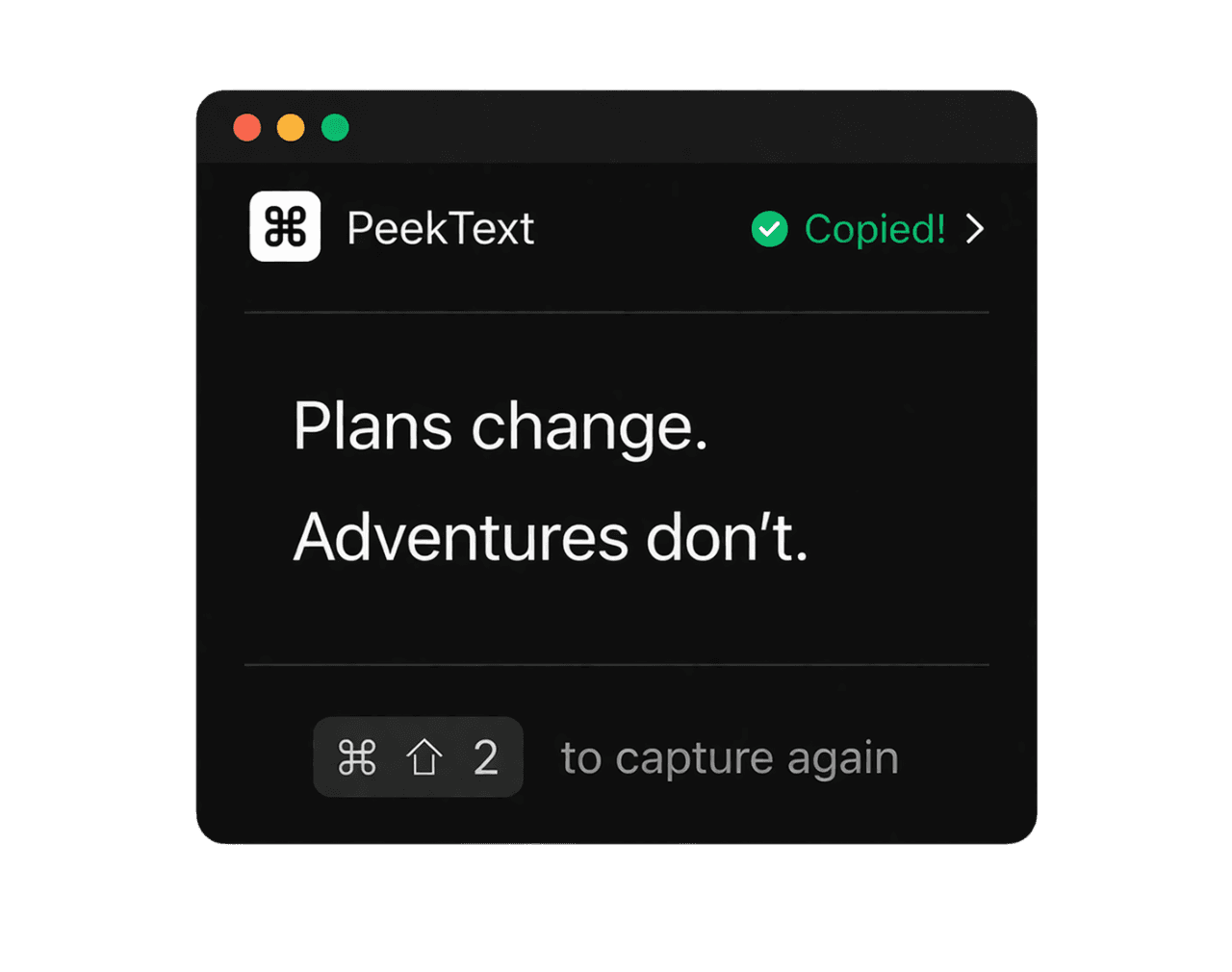
The extracted text goes to your clipboard immediately, ready for notes, research, messages, or documents.
Why this matters
Important content keeps getting published as images
A lot of the web has shifted toward image-based communication. That makes pages look polished, but it also breaks one of the most basic expectations of working on a computer: if you can see text, you should be able to use it.
Without OCR, every useful graphic becomes a dead end. You either retype the text, abandon it, or hunt for the original source somewhere else.
PeekText removes that friction in the shortest possible path. Open the page, select the text, extract it, and continue.

Accuracy
Small habits that improve extraction quality
Capture only the text region instead of the whole image.
Zoom the page if the image text is too small to read comfortably.
Work section by section on dense infographics.
Review numbers, names, and URLs once before reusing them.
Privacy
Your browsing stays on your Mac
Website image extraction often involves content you do not want to upload elsewhere, whether that is internal research, account screens, documentation, client material, or private browsing.
PeekText keeps the workflow local. Nothing needs to be sent to a third-party OCR service just to recover a few lines of text.
That makes the process faster, simpler, and easier to trust.
Stop pausing and retyping
Extract any text from any video on your Mac.
PeekText works entirely offline. No uploads, no subscriptions, no account required. Install once and use it every day.