
PDF OCR Guide
How to extract text from PDF on Mac
PDFs are supposed to preserve information. Too often they trap it instead. PeekText lets you extract text from scanned, image-based, and non-selectable PDFs on your Mac without retyping.
Published April 12, 2026
The problem
A PDF can look readable and still be unusable
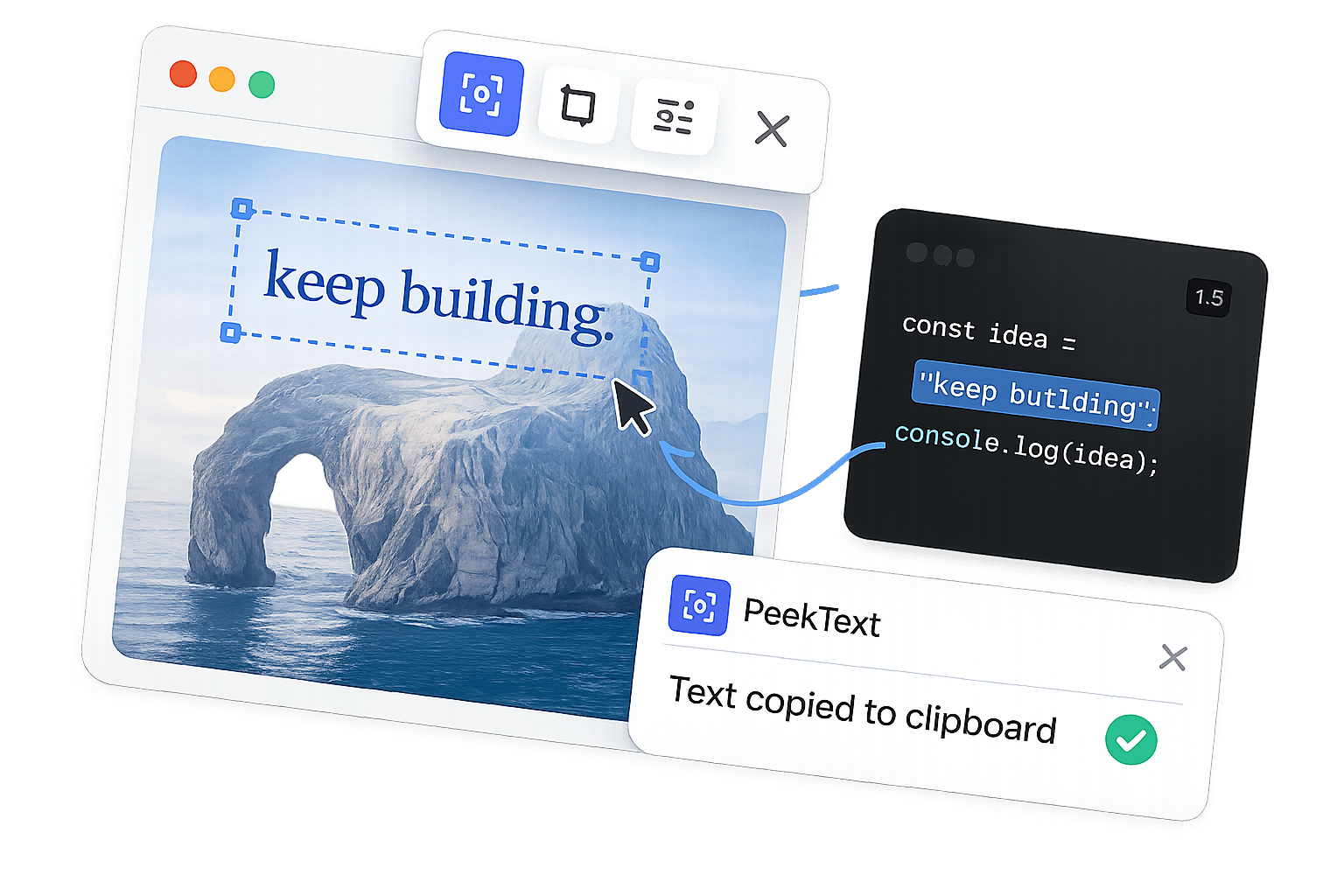
This is where PDF workflows break down on Mac. The document opens, the text is visible, but nothing can be selected. Copy and paste fails. Search fails. What should be a simple task turns into manual typing.
That usually happens with scanned PDFs, image-based exports, badly structured documents, or pages that behave more like pictures than text.
PeekText fixes that by skipping the file problem completely. It reads the text from what is visible on your display and places the result on your clipboard instantly.
Where it helps
PDF situations that normally waste time
Not every PDF needs OCR. These are the cases where it matters because normal copy and paste stops working.
Scanned PDFs
When a PDF is just a scanned page, the text looks visible but behaves like an image. PeekText extracts it directly from your screen.
Locked or image-based pages
Some PDFs open fine but still do not let you select or copy text. PeekText works anyway because it reads what is visible on the page.
Tables, forms, and reference blocks
Invoices, statements, forms, and structured layouts often need only a small section copied. Select that area and extract exactly what you need.
Multi-page documents
For long PDFs, move page by page and extract only the sections that matter instead of fighting the whole file.
The workflow
A simple way to recover text from stubborn PDFs
Open the PDF where you already work
Preview, Safari, Chrome, Adobe Acrobat, and other viewers all work because PeekText reads the screen, not the file format itself.
Zoom to the section you need
Larger text usually means cleaner extraction, especially for small print, dense paragraphs, or scanned documents.
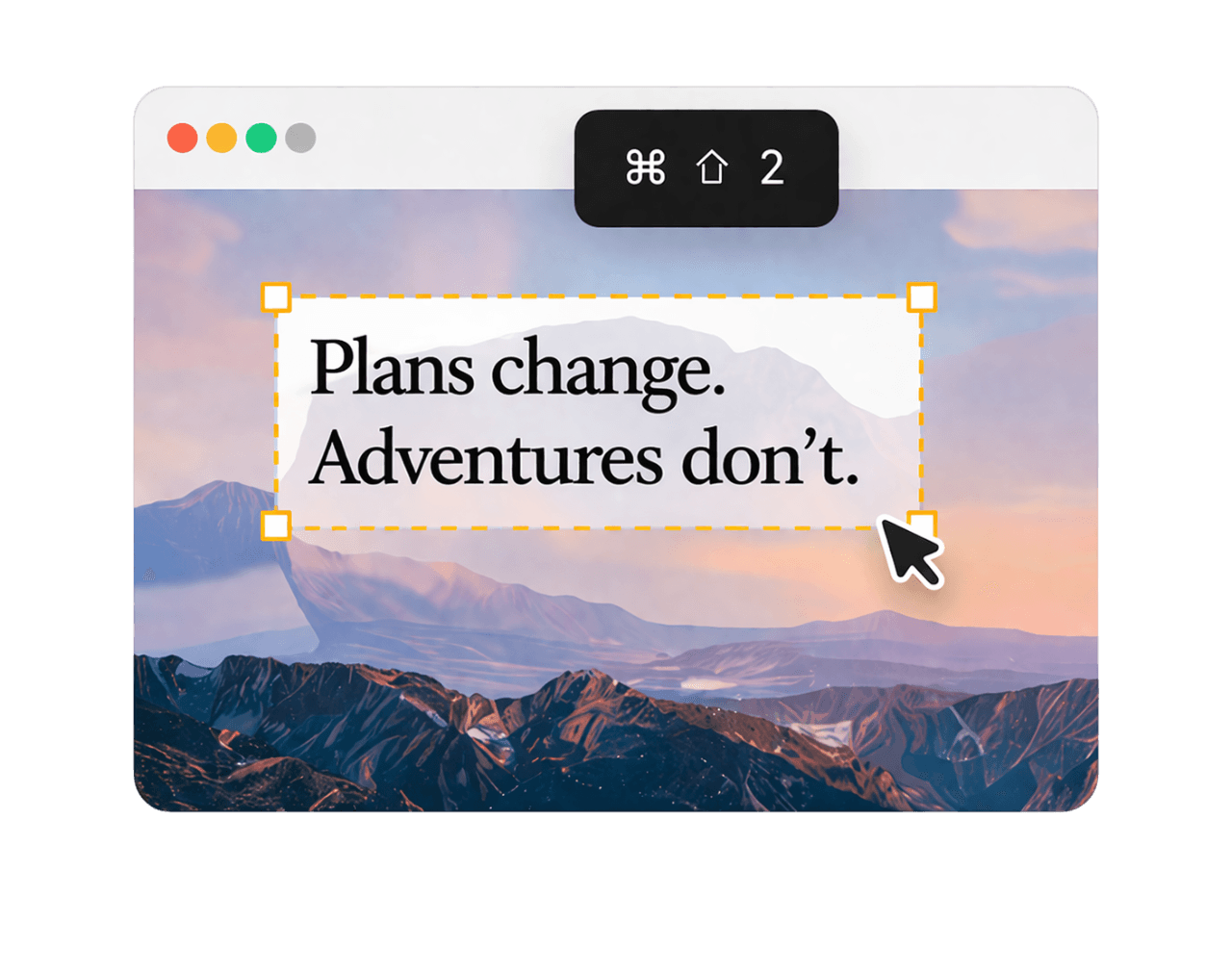
Press Cmd + Shift + 2
PeekText enters capture mode instantly so you can drag over the exact lines, fields, or blocks you want.
Paste and keep moving
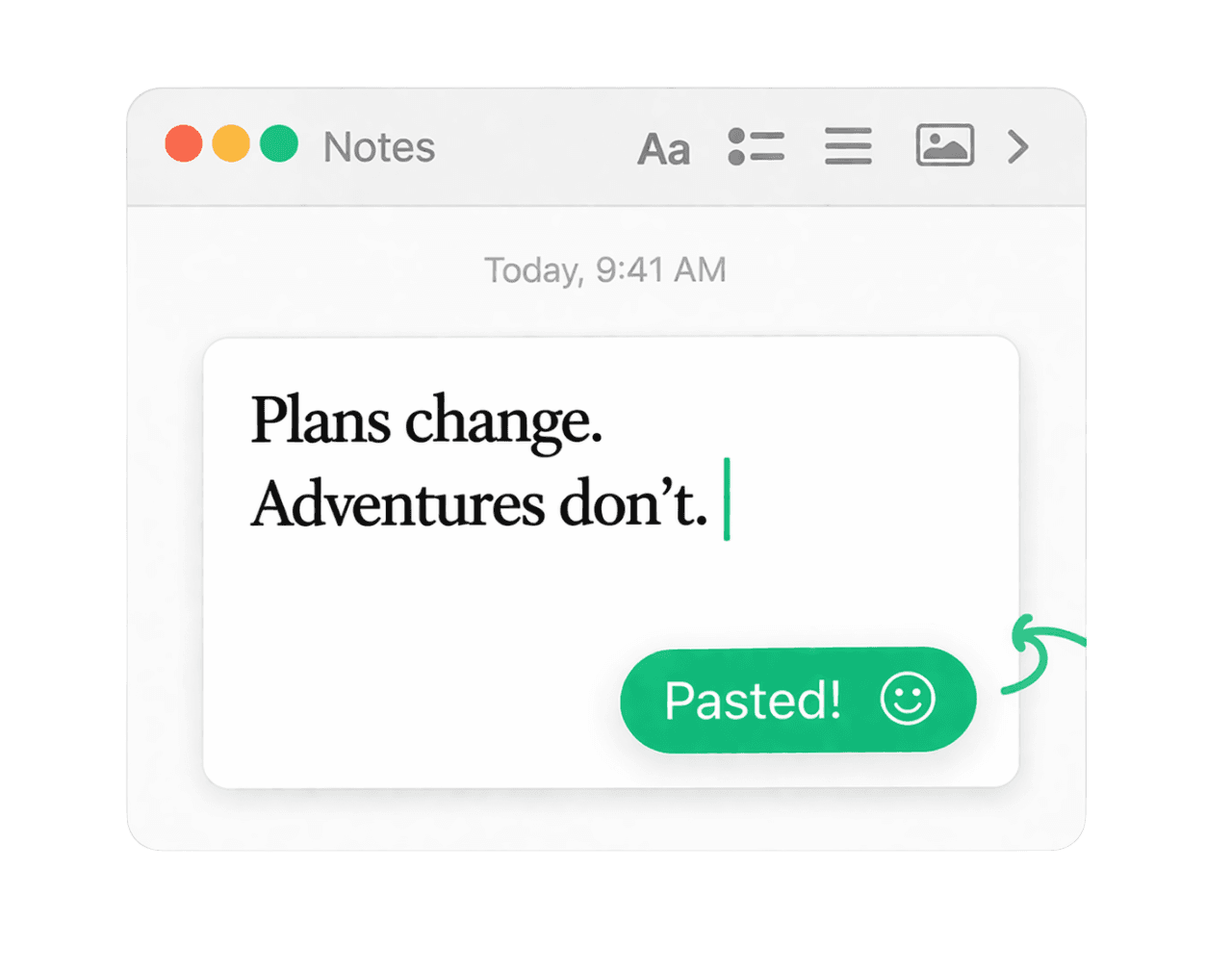
The extracted text lands on your clipboard right away, ready for notes, emails, spreadsheets, forms, or documents.

Complex layouts
Tables, columns, and forms need a more precise approach
PDFs are often messy. Some pages use two-column layouts. Some mix text with charts. Others pack fields, totals, or labels into tight form structures.
The fastest way to get clean results is not to capture the whole page at once. Work section by section instead. Pull one column, one table area, or one group of fields at a time.
That keeps the reading order clearer and reduces the noise around the text you actually need.
Accuracy
Small habits that improve extraction quality
Zoom in before extracting small or dense text.
Capture one column at a time in multi-column PDFs.
Select around tables and fields carefully instead of grabbing the whole page.
Review numbers, names, and technical strings once before using them.
Why it matters
PDFs should not slow down basic work
A surprising amount of useful information still arrives trapped inside PDFs: statements, invoices, forms, reports, scanned records, and archived documents.
When those files stop you from copying text, the friction spreads into everything else you need to do next. Notes take longer. Data entry takes longer. Messages take longer. Small delays pile up.
PeekText removes that friction with the shortest possible flow. Open the PDF, zoom in, select the text, and keep moving.
Stop pausing and retyping
Extract any text from any video on your Mac.
PeekText works entirely offline. No uploads, no subscriptions, no account required. Install once and use it every day.