
Scanned Document OCR Guide
How to extract text from scanned documents on Mac
Scanned documents preserve the page, but they usually trap the text. PeekText pulls that text back out so you can copy, paste, and use it without retyping.
Published April 12, 2026

The problem
A scanned page can look readable and still waste your time
This is the core frustration with scanned documents on Mac. The page opens fine. The words are visible. But the text is not selectable, searchable, or usable in any normal workflow.
That pushes you into manual typing for things that should take seconds. Names, dates, paragraphs, form fields, invoice details, and reference notes all get stuck inside image-based pages.
PeekText fixes that by reading the visible text directly from your screen and placing the result on your clipboard instantly.
Where it helps
Scanned files that usually create friction
Not every file needs OCR. These are the scanned document cases where PeekText saves real time because copy and paste no longer works.
Scanned letters and reports
Older documents and exported scans often look readable but behave like flat images. PeekText turns them back into usable text on your Mac.
Printed forms and paperwork
Forms, applications, receipts, and printed pages are often shared as scans. PeekText helps you extract only the part you need instead of typing everything again.
Signed pages and reference sheets
Even when a document includes signatures, stamps, or formatting noise, you can still capture the text region separately and recover the content quickly.
Archived image-based files
Many archived records are stored as scans instead of editable documents. PeekText makes them searchable and reusable one section at a time.
The workflow
The fastest way to recover text from a scan
Open the scanned document
Preview, browser viewers, PDF apps, and image viewers all work as long as the document is visible on your screen.
Zoom to the text area
If the scan is dense or small, enlarge it first. Cleaner, larger characters usually produce better extraction results.
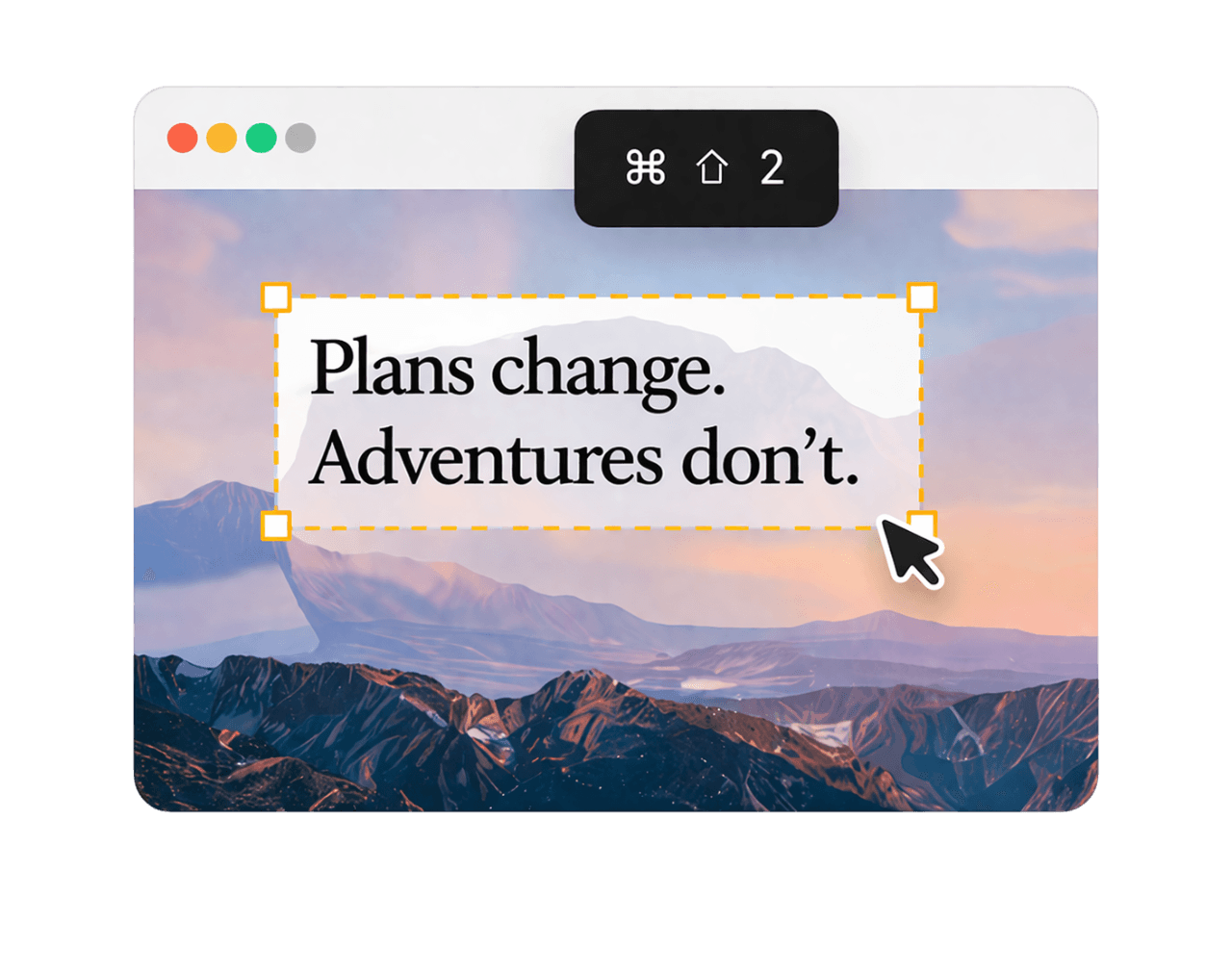
Press Cmd + Shift + 2
PeekText enters capture mode immediately so you can drag over the exact paragraph, field, or section you want.
Paste and keep moving
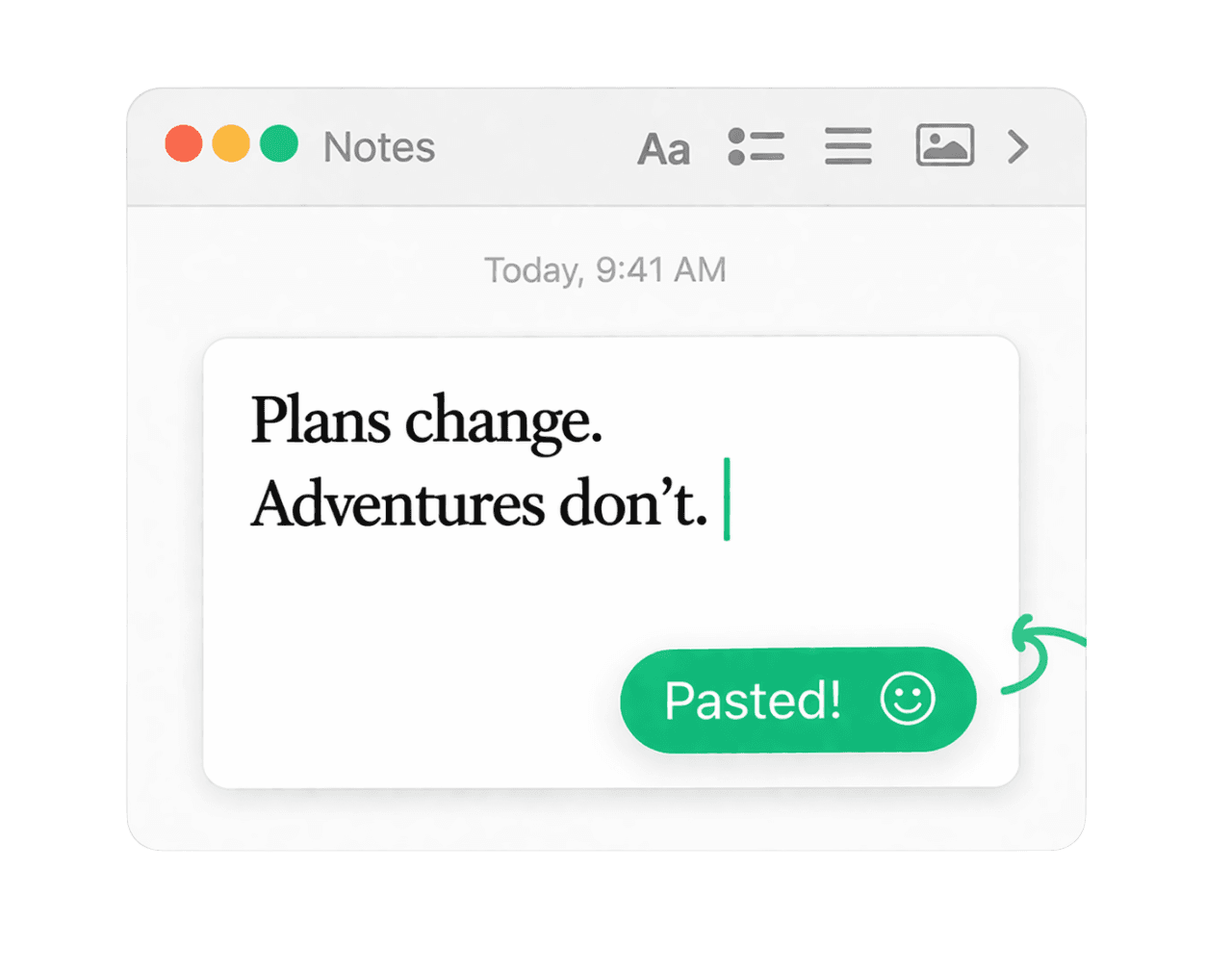
The recognized text is copied to your clipboard right away, ready for notes, emails, documents, or data entry.

Messy documents
Forms, stamps, and mixed layouts need a cleaner approach
Scanned documents are rarely perfect. Some pages are skewed. Some include stamps, handwritten notes, boxes, tables, or uneven print quality. Others pack too much content into a small area.
The best approach is to work section by section. Capture the paragraph, field group, or table area you actually need instead of trying to extract the whole page at once.
That reduces visual noise and usually produces a cleaner result, especially when the document is old or poorly scanned.
Accuracy
Small habits that improve extraction quality
Zoom in before capturing small printed text.
Capture one section at a time instead of the whole page.
Avoid selecting stamps, marks, or handwritten notes unless you need them.
Use tighter selections for forms, labels, and multi-block layouts.
Review names, dates, and numbers once before using them elsewhere.
Why it matters
Scanned text should not stay trapped in old formats
A lot of useful information still lives in scanned pages: archived records, printed reports, forms, agreements, statements, and reference sheets.
When those files block basic copy and paste, even small tasks become slower. Notes take longer. Forms take longer. Messages take longer. The friction spreads into everything else.
PeekText removes that friction with the shortest possible flow. Open the scan, select the text, extract it, and continue.
Stop pausing and retyping
Extract any text from any video on your Mac.
PeekText works entirely offline. No uploads, no subscriptions, no account required. Install once and use it every day.